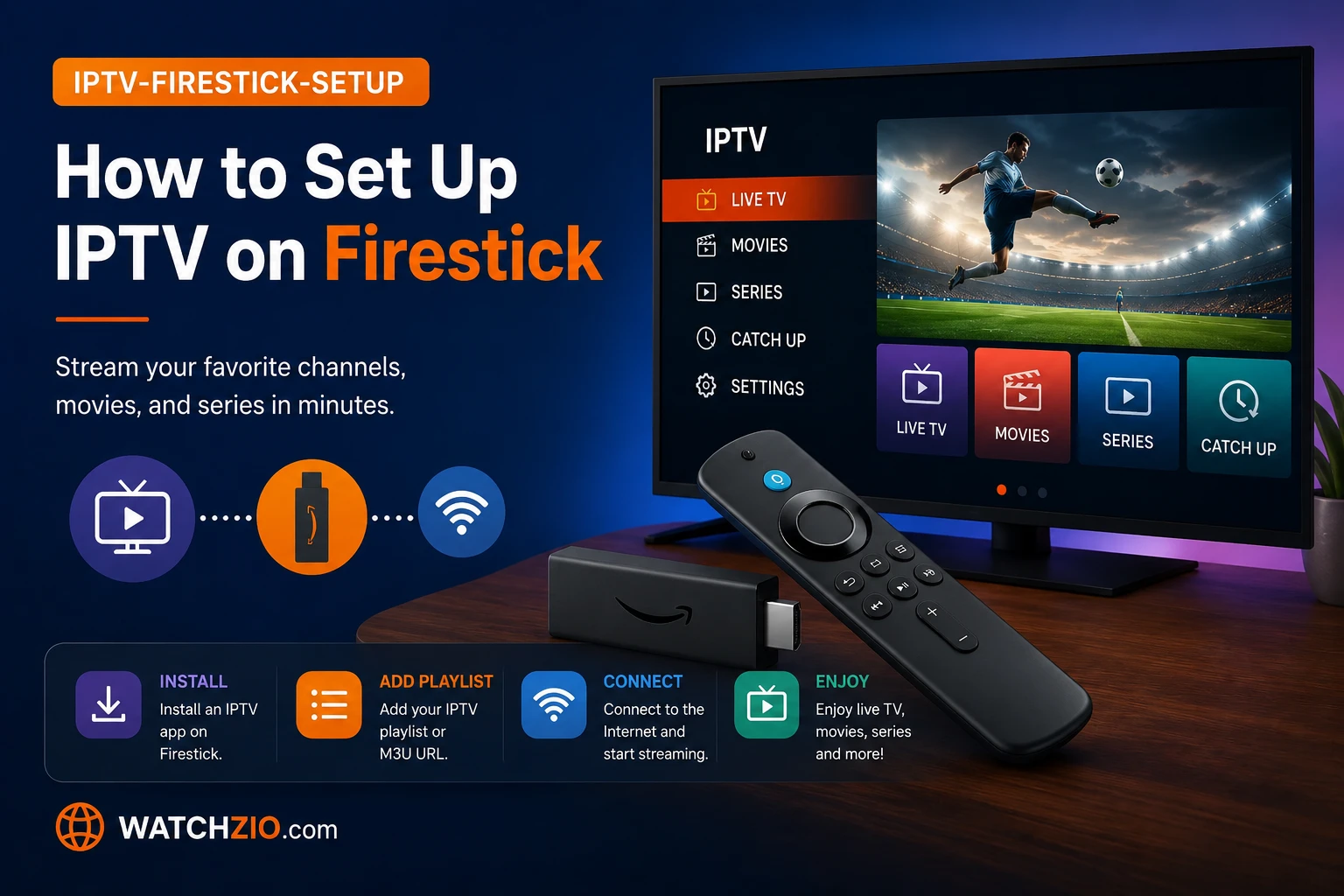
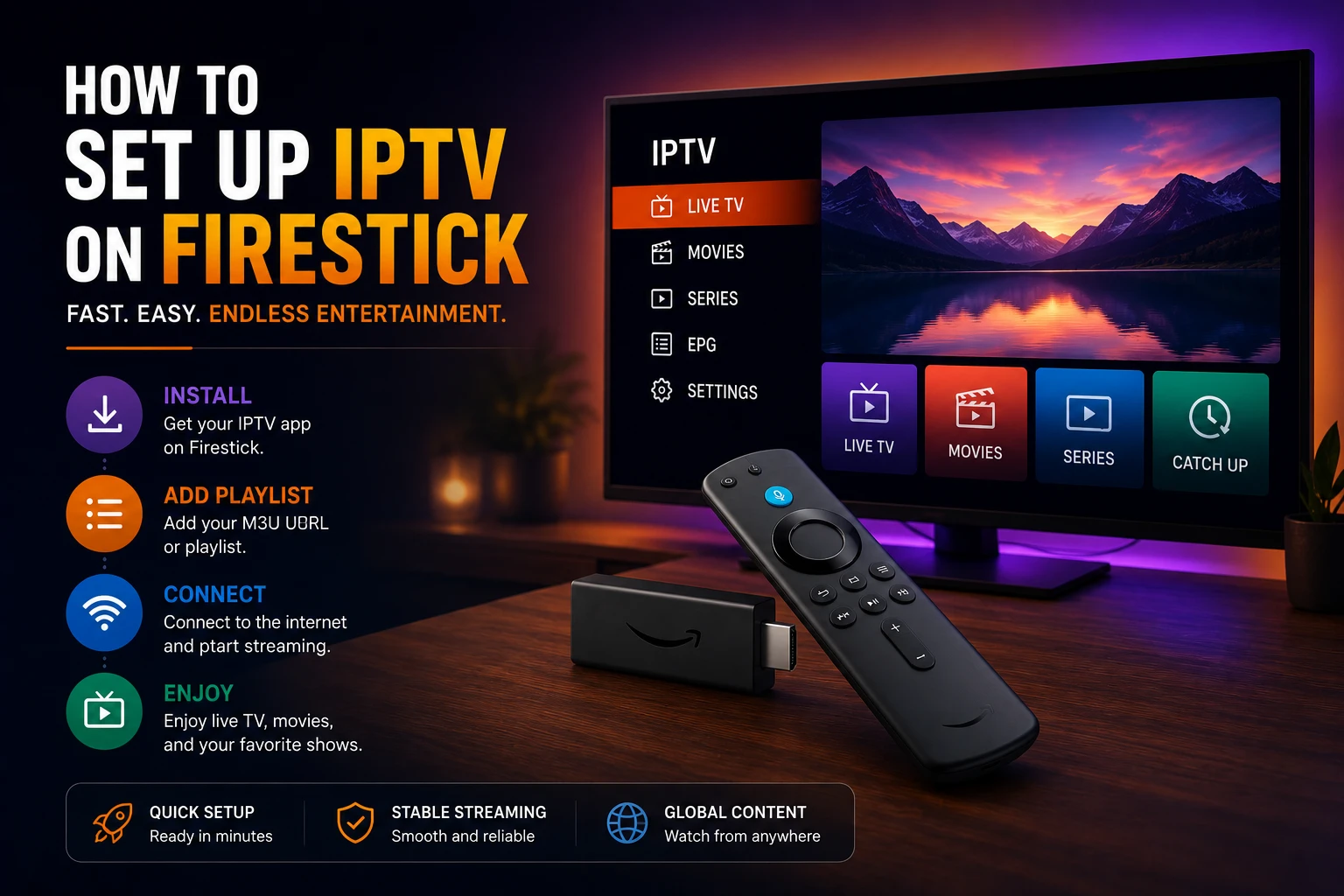
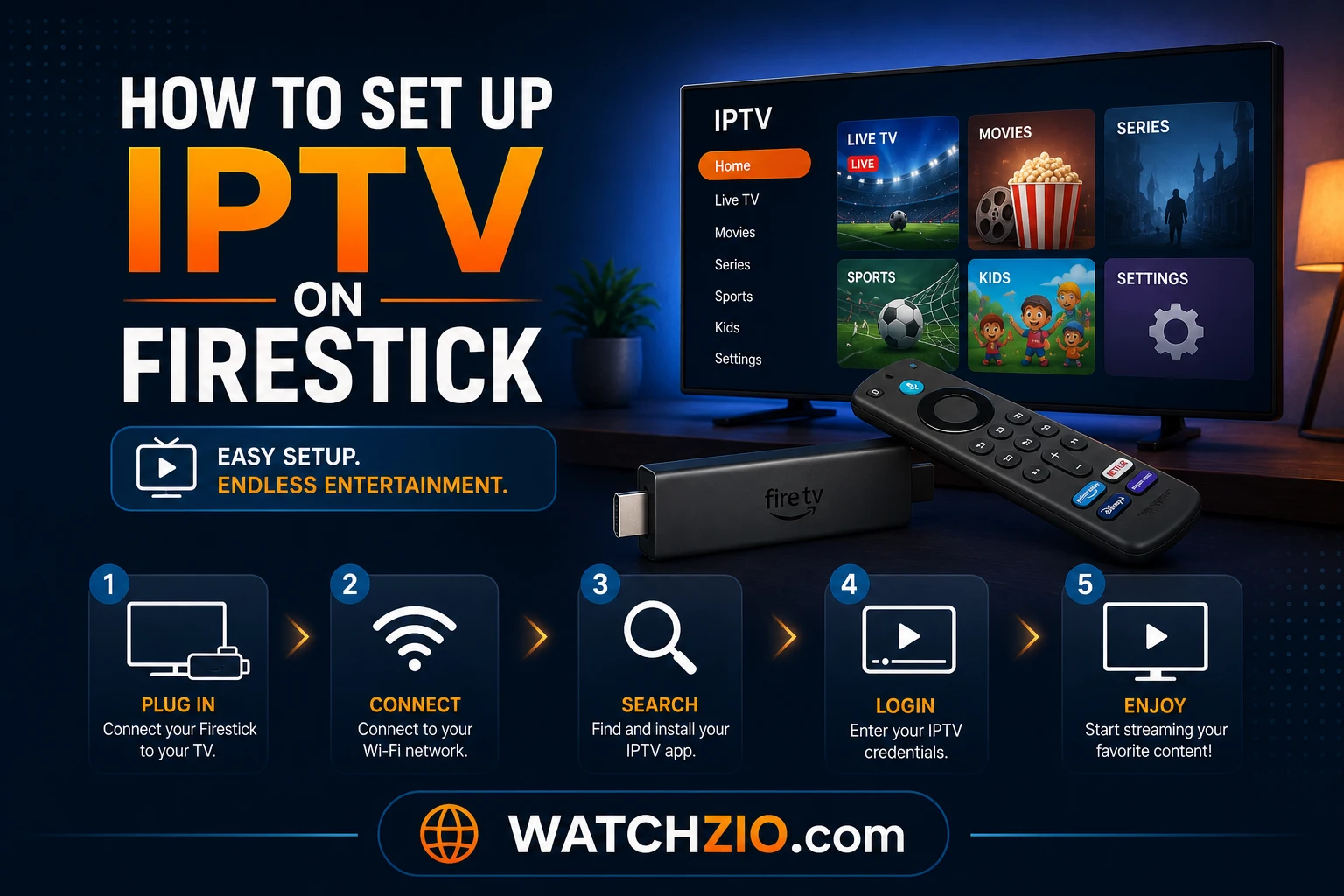
Five things, in order: flip on "Apps from Unknown Sources" in settings, install Downloader, use it to grab an IPTV player like TiviMate or IPTV Smarters, then punch in the M3U URL or Xtream Codes your provider sent you. That's the whole process — under 10 minutes, zero technical background required. Here's every step in detail, using Watchzio as the example.
Image: Setting up IPTV on Amazon Firestick — step-by-step screens for 2026
Why the Firestick specifically
The Amazon Fire TV Firestick became the default IPTV device for a reason: cheap, plugs into any HDMI port, and runs an Android build that every major IPTV app supports. A Smart TV's locked-down OS won't let you sideload a third-party player — the Firestick will, and lets you set it up exactly how you want.
It travels too. Unplug it, throw it in a bag, plug it into a hotel TV, keep watching. Paired with something like Watchzio that runs on any device, a $30-40 stick turns whatever TV you're in front of into a full streaming setup — no need to buy a new Smart TV to get there.
Before you start
Before beginning the setup, make sure you have the following ready:
An Amazon Firestick — any generation works, including the Fire TV Stick 4K and 4K Max
Your IPTV credentials — an M3U URL or Xtream Codes (server URL, username, password). With Watchzio, these arrive by email instantly after you start a trial or subscribe.
A stable internet connection — at least 10 Mbps for HD, 25 Mbps for 4K streaming
About 10 minutes — first-time setup is quick once you know the steps
If you don't have credentials yet, you can start a free 24-hour Watchzio trial with no credit card required and receive your login details by email immediately.
Step 1: let the Firestick install apps from outside the store
Out of the box, the Firestick only installs from the Amazon Appstore. IPTV players like TiviMate live outside it, so you need to allow that first:
From the Firestick home screen, go to Settings (the gear icon)
Select My Fire TV (or Device on older models)
Choose Developer Options
Turn on Apps from Unknown Sources
Confirm the warning prompt by selecting Turn On
This is a standard Amazon setting, not a hack or jailbreak. It simply allows you to install apps that aren't in the official store — exactly like enabling app installation on an Android phone.
Step 2: get Downloader
Downloader is the free, official app that actually pulls other apps onto your Firestick. It's sitting right in the Amazon Appstore:
Go to the Find menu on the home screen and select Search
Type "Downloader" and select the orange Downloader app by AFTVnews
Select Download (or Get) and wait for it to install
Open the app and allow it the permissions it requests
Image: Installing the Downloader app on Firestick to sideload an IPTV player
Watch on any device — no cable needed
Start your free 24-hour trial. No credit card required.
Two real options here, and both are solid. Side by side:
App
Best for
Cost
Key features
TiviMate
Best overall experience
Free + Premium
Beautiful EPG, recording, multi-screen, catch-up TV
IPTV Smarters Pro
Beginners
Free
Simple setup, built-in player, easy interface
To install TiviMate via Downloader: open Downloader, type the TiviMate APK URL into the address bar (available from the official TiviMate site), and follow the install prompt. To install IPTV Smarters Pro: it's often available directly in the Amazon Appstore, so you can simply search for it in the Find menu and install it like any other app.
We recommend TiviMate for the best Firestick experience — it has the most polished interface, a full electronic programme guide, recording support, and smooth 4K playback. IPTV Smarters Pro is the simpler choice if you just want to get watching quickly.
Step 4: point the player at your subscription
With the player installed, the last piece is loading your actual channels. Exact screens differ by app, steps don't:
In TiviMate:
Open TiviMate and select Add Playlist
Choose Xtream Codes (recommended) or M3U Playlist
Enter the credentials from your Watchzio welcome email: server URL, username, and password
Select Next and wait while the playlist loads — for thousands of channels this takes 30–60 seconds
Optionally add the EPG (programme guide) URL when prompted
In IPTV Smarters Pro:
Open the app and select Add New User
Choose Login with Xtream Codes API
Enter any name, then your Watchzio server URL, username, and password
Select Add User — your channels, movies, and series load automatically
Step 5: squeeze out the 4K and stop the stutter
A few settings separate "it works" from "it looks great":
Set your display to 4K: Go to Settings → Display & Sounds → Display and select 4K Ultra HD with HDR/Dolby Vision if your TV supports it
Use hardware decoding: In TiviMate, go to Settings → Player and set the decoder to Hardware for smoother 4K playback
Connect via Ethernet if possible: A wired connection using a USB-to-Ethernet adapter eliminates the Wi-Fi instability that causes most buffering
Restart your Firestick weekly: This clears memory and keeps performance smooth
Image: Firestick display settings for 4K IPTV streaming with TiviMate
When it buffers anyway
Buffering is the #1 complaint, and it's almost never the service — it's the network. The fix order that actually works:
Switch to a 5GHz Wi-Fi network or, better, use a wired Ethernet adapter. Wi-Fi packet loss is the number one cause of buffering.
Check your internet speed — you need at least 10 Mbps for HD and 25 Mbps for 4K. Run a speed test on the Firestick before a big event.
Clear the app cache via Settings → Applications → Manage Installed Applications → [App Name] → Clear Cache.
Use a Firestick 4K Max — older Fire TV Stick models have less processing power and can struggle with high-bitrate 4K streams.
A premium service like Watchzio is delivered through dedicated infrastructure with a 99.9% uptime guarantee, so server-side buffering is rare. If you've optimised your network and still see issues, our 24/7 support team can help.
The bottom line
Ten minutes, five steps, no technical background needed: unknown sources on, Downloader installed, a player like TiviMate added, credentials entered. That's thousands of live channels and a huge on-demand library in 4K, running on a device that costs less than one month of cable.
Enable "Apps from Unknown Sources" in Settings → My Fire TV → Developer Options. Then install the Downloader app, use it to install TiviMate or IPTV Smarters Pro, and enter your M3U URL or Xtream Codes from your Watchzio welcome email. The whole process takes under 10 minutes.
What is the best IPTV app for Firestick?
TiviMate is the best IPTV app for Firestick — it has the most polished interface, a full EPG guide, recording support, and smooth 4K playback. IPTV Smarters Pro is a great free alternative that is easier for beginners.
Do I need to jailbreak my Firestick for IPTV?
No. You do not need to jailbreak your Firestick. Simply enabling "Apps from Unknown Sources" in Developer Options is enough. This is a standard Amazon setting, not a hack or modification.
Why is my IPTV buffering on Firestick?
Buffering is almost always caused by Wi-Fi instability. Connect your Firestick via Ethernet using a USB-to-Ethernet adapter, ensure at least 25 Mbps for 4K, and clear the app cache. A Firestick 4K Max also handles high-bitrate streams better than older models.
Can I use Watchzio on Firestick?
Yes. Watchzio works on all Firestick models via TiviMate, IPTV Smarters Pro, or any M3U-compatible app. After you start a trial or subscribe, you receive your M3U URL and Xtream Codes by email instantly.
IPTV explained simply: what it is, how it works, supported devices, internet speed, legality and how to get started. The complete 2026 beginner's guide.